New Features are coming soon

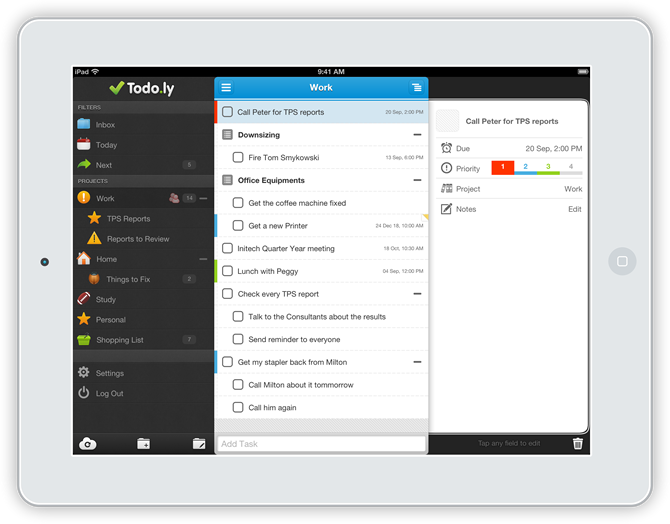
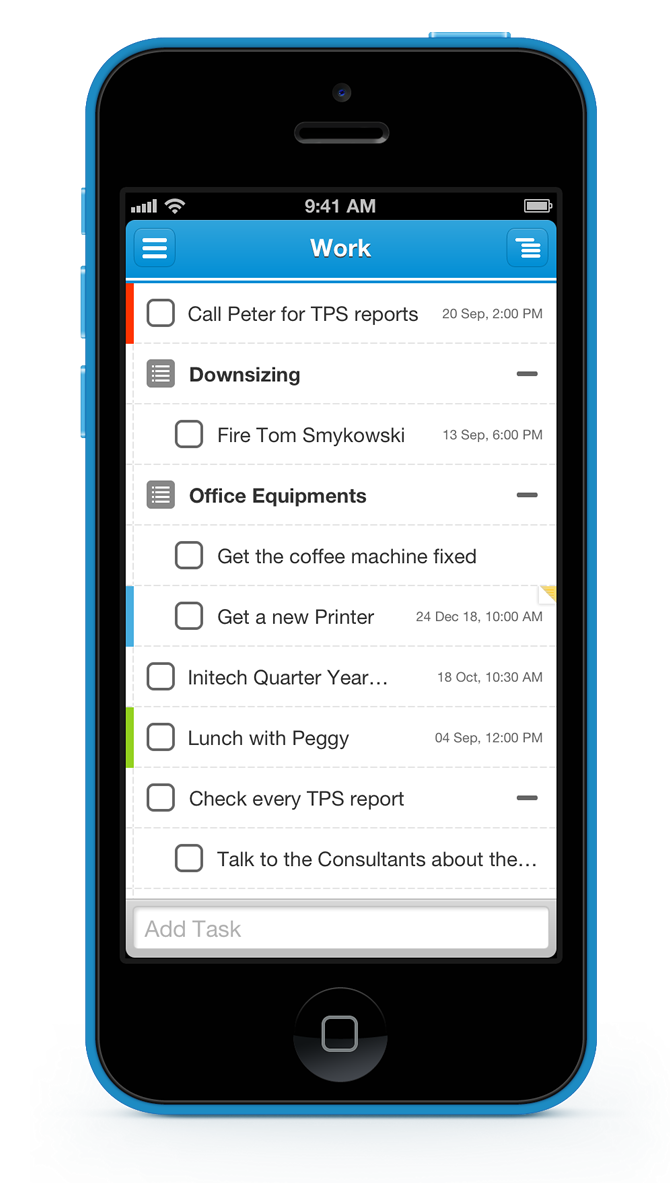
We have been spending the last couple of months working on native Mobile apps for Todo.ly. The iPhone app is still in progress because we need to make sure it’s flawless before we release it.

The reason for the post is to let you guys know we are planning to release a couple of new features for the Web app too. In the first round we are going to release the email notifications feature that will send you notifications daily/weekly about your upcoming tasks.

After that we scheduled to release Recurring tasks functionality that will help you to create repeating tasks.

So stay tuned!

Tagged with: [ , , , , ]

How to Share a Project

Sharing a project is quite simple. Click on the project you want to share, and select Share from the options menu.
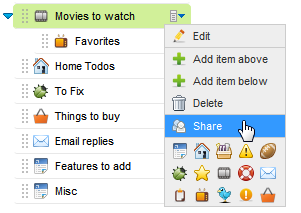
A ‘Share Project’ window pops up where you can enter who you want to share this project with.
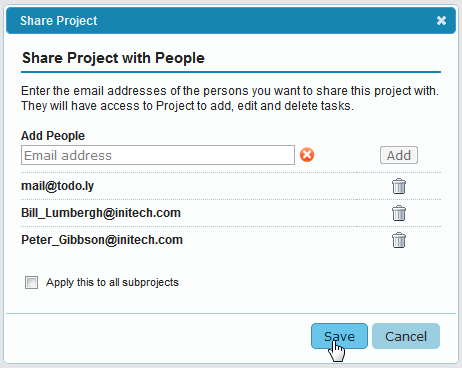
After entering one or more email addresses, you can select to Apply this share to all subprojects. That will mean all current subprojects will be shared too.

It’s very important to know that each project is shared separately. So when you share a project and select to share all subproject, it will apply the same share settings and addresses to all the subprojects one by one. Eventually each sub projects can have different list of people. When you move out a subproject, it won’t delete the shared settings, so it will still be shared. The same way when you are adding a subproject to a shared project, it won’t get automatically shared.

It makes sharing very flexible and it’s easy to share each project differently. At the same time, it’s easy to overwrite the share settings for the subproject by opening the settings for the parent project and just apply this settings to all subprojects.

Receiving Share

When you share a project with someone he receives an email notification about it. He doesn’t need to have a Pro Account to access the project you shared with him.

When he logs in to Todo.ly he will see a dialog window asking to Accept the new Shared Project.
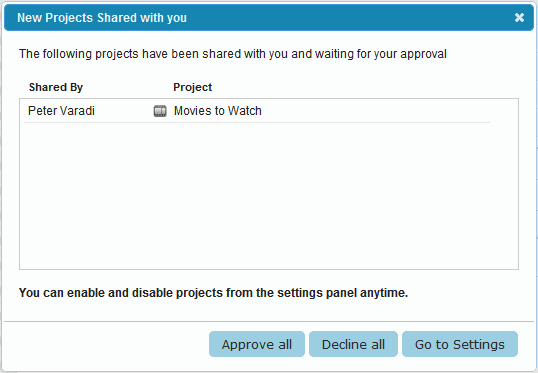
Here he can see the projects you just shared with him. He can choose to accept, decline or review all shared projects on the setting panel:
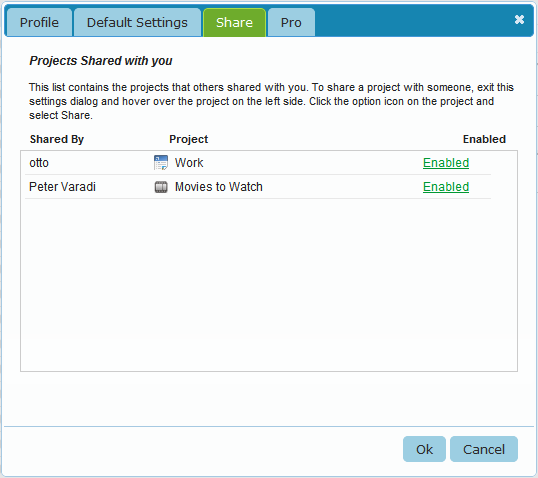
After accepting the project, it gets added to his project.
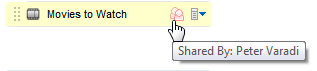
From this point he can move the project where he just want, rename, change the icon, these won’t affect the name or location of the original project on your list. These are user specific settings and each user can relocate their project or name it as they want.

If they move other projects into this project, the new projects won’t be shared automatically. The sharing is not inherited, each project is handled separately.  They can however choose to share their own projects with you or with anyone.

A project can only be shared by its owner. If you share a project with someone, he can access the tasks, edit, delete, and check them, but they cannot re-share your project with others.

The project owner owns all the items that gets added to the shared project. In case he chooses to stop sharing the project, he will keep all the items in it.

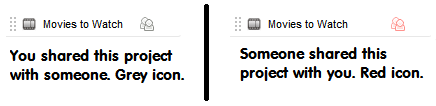
Each shared project is marked with a special icon that reminds you that it’s a shared.
Tagged with: [ , , , ]

How to use Notes

With our latest release we introduced Notes for tasks. Now it’s time to get into the details and describe how exactly it works.

The first thing you notice is that the Task Entry field has been extended

In the Notes section you can type any text or copy paste some content from other webpages. Please note that your browser can’t always correctly copy the content of a webpage. It always depends on the webpage you are copying from. In general text, images and already embedded videos are very easy to copy.

Just select a content on a webpage and paste this to the Notes section on Todo.ly. It will display it as it was on the website.

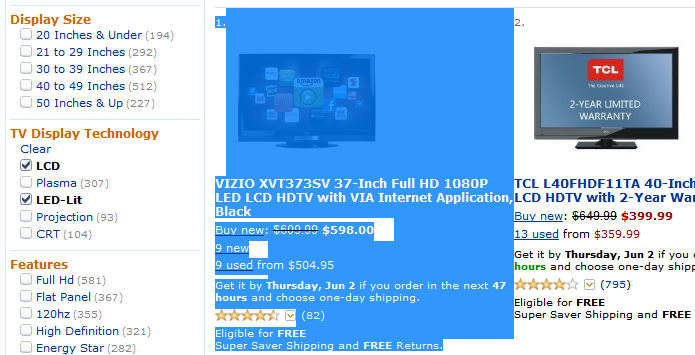
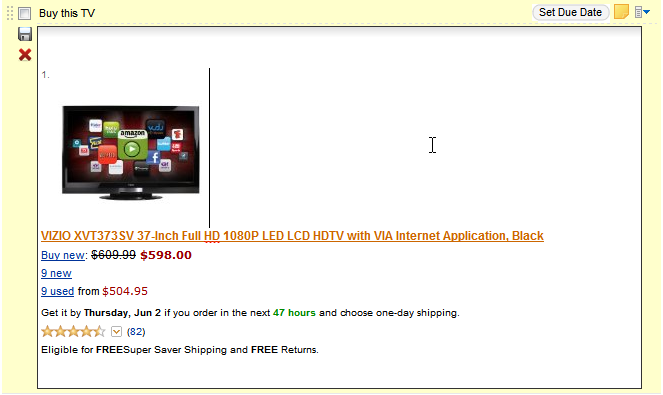
For Example, select and copy an item from Amazon.

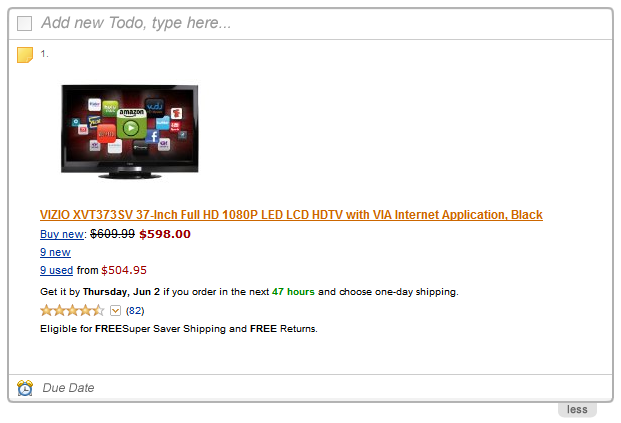
Paste this to Notes

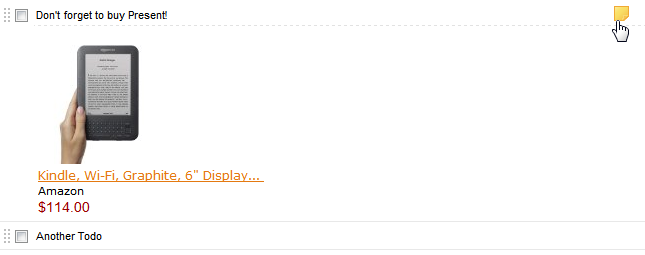
The notes will be added to the task when you submit it, and you will notice an icon on right side of the task.

Clicking on the icon Expands the Notes attached to the task.

To edit an existing notes just expand the notes and click on the content to edit it instantly.

You can select all text by pressing Ctrl-a meanwhile editing. To save the notes, just click out of the edit box or press the Save icon on the left side. To cancel editing press Esc or click the cancel icon.

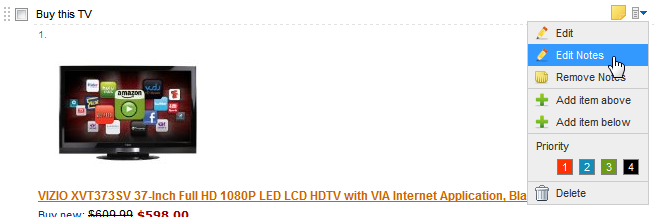
In case you don’t like the single click notes editing you can turn this off. Go to settings panel and look for “Automatically Edit Notes on Click” under Default settings.  After that you can use the option menu to edit and remove notes.

Limitations

There are certain contents that you can’t easily embed in the notes. For example while you can easily copy paste a youtube video from a third party side where it’s embedded, you can’t copy the video from youtube’s site. In general you can paste the same things that you can in gmail’s email editor. The rest is mainly a limitation of the browser as you can’t always select and copy the content the way it can be embedded. We are planning to extend the Notes functionality in the next releases. You could edit the html of the Notes and paste embeddable html code from third party sites.

Right now if you are typing an html code into the notes, it will be displayed as simple text. If you are copy pasting some content from other websites, that will be displayed as it was on that website.

Firefox New Line

There is a Firefox bug that prevents adding new line when you are pressing Enter during editing an existing notes. It’s working fine when you are using the grey new task section. Shift-Enter works fine as alternative. We are trying to find a Workaround until Firefox fixes this bug.

Tagged with: [ , , , ]

May Release. Pro Features!

Yes! We have just released the long waited Pro features. We have been testing and working on this release in the past few months so we are very excited to let you know it’s finally released.

We are going to create separate posts about the bigger features, so please consider the following as only summary of the new features.

Share Projects!

In the project option menu you can find a new Share menu item.

It opens a share window where you can enter multiple email addresses to share this project with. Todo.ly sends email notification to those email addresses letting them know you have shared a project. They don’t need to be a Pro user to see and edit the project. If they don’t have Todo.ly account, after signing up, they will see the project you shared.

Anyone you share a project can edit / add /delete items from the project. Technical details are coming soon in a separate post.

Notes

This is a pretty neat feature! You can add HTML! notes to each task.
Just copy paste any text/ image / video / whatever from a website and include this as notes to the task.


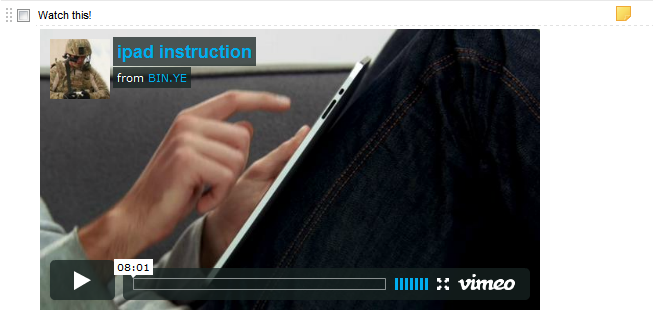
Copy paste an embedded Video from a site

If you take a look, you can see the yellow notes icon in the top left corner of the task. Clicking on the icon expands / collapses the Notes for the task. In case there is a notes for the task the icon is always visible.

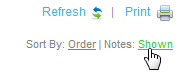
You can also collapse / expand all notes on all tasks using the Notes link at the top of the page.

Clicking on a notes area below a task, changes it to edit mode, so you can easily edit the notes and save it by pressing enter or clicking out of the field.

Email Tasks to your Todo.ly

In case you want to send an email to your Todo list just send the email to todo@todo.ly. Todo.ly identifies your email address and adds this email to your Todo.ly Inbox.

The subject line will be the task itself, and if you have a Pro Account the body of the email gets attached as the notes of the task.

Find more details on notes in the upcoming blog posts.

Simpler Entry form

We fixed many bugs, and made many improvements. We improved the speed of rendering, upgraded and optimized the back end systems, so hopefully you will notice the faster page load and more responsive UI.

If you like Todo.ly you are going to love the new Pro features! Please Upgrade to Pro.

Tagged with: [ , , , , ]

April Release

With the last release over the past weekend we introduced a couple of long waited features.

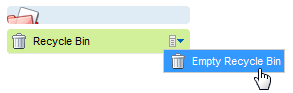
One of these is the Empty recycle Bin feature.
Hover over your mouse to the recycle bin and you will find an a new menu item in the usual place.

Clicking on the menu item will permanently delete all the items from the recycle bin. We don’t store any further records in our database after you empty your recycle bin this way.
In connection with this feature we introduced an option to Delete all done items in a project. Delete all done items will move the done items from the project to the Recycle bin.

Another cool new feature is the Project label in the filter list. When you are looking at a filter list you will find that each item has a label on the right side with the name of the project the item belongs to. Clicking on the label takes you to the project directly.

You can switch this label off (settings panel) if you prefer simpler interface.

We also fixed a number of bugs, and extended the API with many new methods. Find more about that in our API Wiki page. (update on Wiki page is coming after this post)

We are now preparing the application for the next big release that will finally contain pro features! You can expect many new features coming soon.

Tagged with: [ , , , , ]

New features, March Release

Today we have released a couple of new features, improvements and bug-fixes. We are trying to release in every month or two to keep the new things coming meanwhile we are still working on bigger features.

The new features in nutshell:

Links
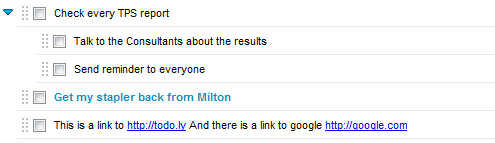
Now you can add links to your todo list. Links will be highlighted and will lead to the link in new window.

The following formats are supported http:// https:// ftp:// ftps:// notes:// file://

Text Size
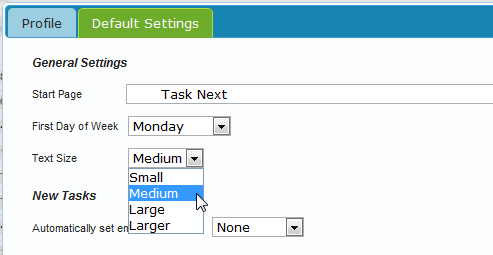
There is a new Setting on the settings panel to change the Text size if you prefer bigger font size for project names and tasks.

Print
Yes! You can Print your list by selecting the list and clicking on the Print Icon in the top right corner of the screen. This will print the current list exactly as it is seen on the screen. In case you have collapsed task groups it will print exactly like that. You can also change the font size on the settings panel as described above and that will print using that size.

Easier Dragging Texts
The small dragging handler for tasks and projects has been slightly changed. Now the dragging area is twice as big as before and that makes dragging tasks around much easier.

Editing Items
When you edit an item and you click away, now the changed task is saved automatically. In the previous version it was reverting the change if you didn’t press enter. You can still use Enter and Esc to save or discharge the change.

Input Box color
The color of the big task input box has been changed to grey.  It looks less distracting than the red we had before.

Not Beta Anymore
We fixed lot of minor bugs in this release so Todo.ly is not beta anymore! Thanks for your support during the past 1 year! We really appreciate every comment and feedback. So please leave feedback as before and vote for new features you would like to see in the next version http://getsatisfaction.com/todoly

Tagged with: [ , , , , ]

Todo.ly on Google Chrome Web Store

It has been two months since we posted Todo.ly on the Chrome Web Store. I have seen some people already blogging about their experience in the store and I’d like to share some thoughts on how the Chrome Web Store has performed for us.

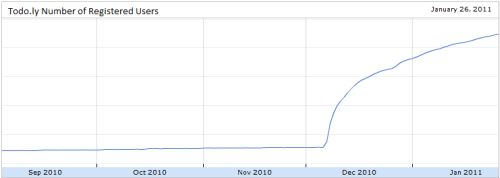
We were lucky enough to be featured in the store when it launched and the past few weeks were nothing short of amazing for us. Thanks to the store, our user base has increased by 780%, achieving the goals we planned for the next 1/1.5 years within the first 3 weeks. Traffic of Todo.ly has increased even more –  by almost 1000%. In fact we grew so fast that our server almost couldn’t keep up. Fortunately we survived without any outage, and we quickly upgraded to a brand new server that is at least 10 times faster as it is important for us to keep Todo.ly lightning fast as always.

Based on the results we are very bullish on the store and we are planning to release some additional premium services in Todo.ly such as sharing projects. If you have any feature you would like to see in Todo.ly, we would love to hear about them. Visit our feedback page and vote for a feature you would like to use: http://getsatisfaction.com/todoly

We would like to thank everybody for using Todo.ly, and for all the feedback we have received so far. We really appreciate it. Keep it coming!

Todo.ly Supports OpenID, Google and Yahoo! accounts.

With the new version that has been released today, you can Login using your Google or Yahoo! accounts. On the Login screen you can simple choose to login with Google or Yahoo!

You can link your Google/Yahoo! account to your existing Todo.ly account, or you can simple sign up as new user if you don’t have account yet.

After you linked the accounts you can login with only one click if you are already logged in into your Google/Yahoo! account. You don’t need to type your password any more. Whenever you are logged on to Google, you are logged in to Todo.ly.

There are a couple of changes on the Settings panel as well:

Settings panel has been redesigned, and the different logical groups has been moved to different Tabs. It was quite necessary as the upcoming versions have more options and a single panel would be too busy.  Now you are able to change your email address directly from the settings panel. (long waited feature)

The accounts you have linked are displayed on the bottom where you can unlink or link them again.

Collapsible Groups:

The next version is coming soon with Pro features. Stay tuned

Tagged with: [ , , , , ]

Pro Features soon

In the past few months we have been working on ‘Pro Features’ for Todo.ly

We are very excited about the new features we will have. Especially the Sharing feature. You will be able to share Projects with your friends, or assign a single task to someone.

It’s still not 100% complete, but hopefully we can finish it soon. So please stay tuned, we will announce the new features soon.

Tagged with: [ , , ]

The Public API is Released!

Yes! We have just released the Public API for Todo.ly. You can use it right away.
There is a Wiki page for every detail: http://todo.ly/ApiWiki/

In nutshell, the API is very simple and powerful. It’s entirely HTTP-based RESTful API, and follows the same structure as the Twitter API. It uses HTTPS Secure Connection.

The main Object Structure:

We have a C# Library for the API already, that we will put on the Wiki page in a few days. If you want to implement a Library in other programming language we would be more than happy to publish that on the Wiki page.

Of course if you have any comments, feedbacks you know how to reach us.

Tagged with: [ , , , ]